


- First: What is Google Search Console?
- Indexed vs. Not Indexed: What does it actually mean?
- The Search Console Errors You Actually Need to Pay Attention To
- So... Which Search Console Errors Should You Actually Fix?
- A Simple Search Console Troubleshooting Process
- Do You Need to Check Google Search Console Every Day?
- What About a Big Number of "Not Indexed" Pages?
- When You Should Be Concerned
- One Last Thing: Search Console Isn't a Report Card
- Want help figuring out what your Search Console is telling you?
- Frequently Asked Questions About Google Search Console Errors
If you’ve ever opened Google Search Console and immediately thought, “Oh no. Something is wrong with my website,” you’re not alone. Google Search Console errors have a way of making a perfectly healthy website look like it needs immediate attention (without making it super clear on what to fix, or how to fix it).
You might see hundreds of pages that aren’t indexed. You might get an email (or 10) about an indexing issue. You might see something labeled as an error and have absolutely no idea what you’re supposed to do about it.
Something that might make you feel a little better: Not every Search Console error is actually a problem.
Some things DO need to be fixed. Some things are completely normal. And some things are simply Google telling you, “Hey, we found this URL, but we don’t think it belongs in our index.”
So before you start clicking around and changing things on your website, let’s talk about what Google Search Console is actually telling you, which errors matter, and which ones you can safely ignore.
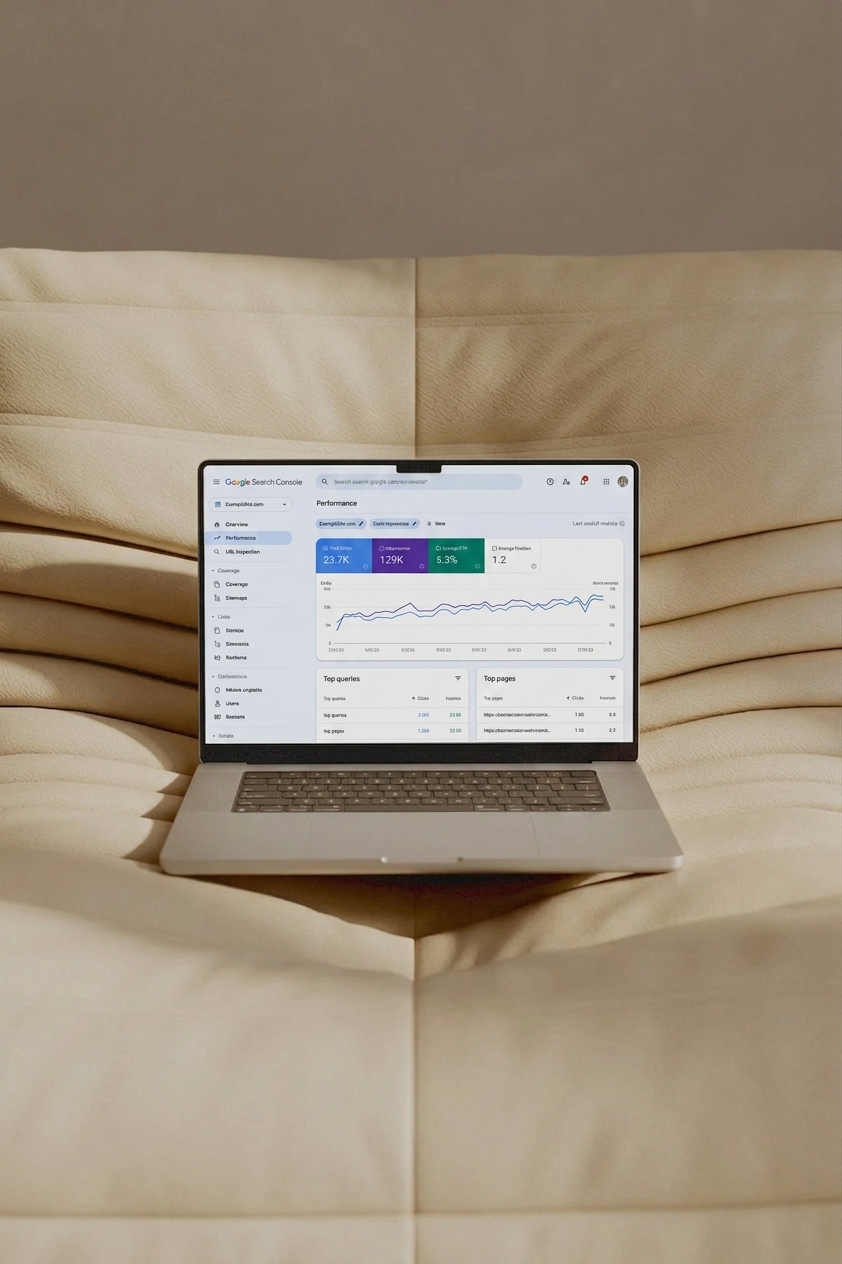
First: What is Google Search Console?
If you’ve never used Google Search Console before, think of it as a way to see your website through Google’s eyes.
Google Search Console is a free tool from Google that shows you how Google is finding, crawling, and indexing your website. It also gives you information about how your website is performing in Google Search.
You can use it to see things like:
- Which pages Google has indexed
- Which pages Google knows about but hasn’t indexed
- Whether Google is having trouble crawling certain pages
- What people are searching for when they find your website
- How many impressions and clicks your website is getting
- Whether Google is finding certain technical issues
- Whether your pages are eligible for certain search features
It’s incredibly helpful. But it’s also incredibly easy to misread, especially when you first open the Page Indexing report and see a big number next to “Not indexed.”
One of the biggest mistakes I see is assuming that number should be zero. It doesn’t. Google does NOT expect every URL on your website to be indexed. Your goal is to have the important pages on your website indexed, not every single URL Google happens to know about.
Duplicate pages, redirects, deleted pages, intentionally hidden pages, and other URLs may be perfectly fine sitting outside of Google’s index.
That’s an important distinction to understand before you start trying to “fix” every warning you see (and I get it, I want that number to say 0 too. It’s just not gonna happen haha).
Haven’t set up Google Search Console yet?
You’ll want to do that before you can start using any of the reports we’re talking about in this post.
I have a step-by-step guide that walks you through how to set up Google Search Console and submit your sitemap so Google can start finding and understanding your website.
And if you already have Search Console set up, let’s get into what all those confusing messages actually mean.
Indexed vs. Not Indexed: What does it actually mean?
When Google crawls your website, it doesn’t automatically put every URL it finds into its search index. (Think of Google’s index like a giant library). Google can find a URL without deciding that URL belongs on the shelf.
So when you see Not indexed, it doesn’t automatically mean: “Your website is broken.” It means: “Google knows this URL exists, but this particular URL is not currently in Google’s index.”
The reason why it’s not indexed is what matters.
For example, a page might not be indexed because:
- You intentionally told Google not to index it
- It’s a duplicate of another page
- The URL redirects somewhere else
- The page no longer exists
- Google couldn’t crawl it
- Google hasn’t gotten around to indexing it yet
- Google doesn’t think the page is valuable enough to index
- There’s a technical issue preventing indexing
Some of those are problems, some are completely normal, but some are actually signs that Google is doing exactly what you want it to do.
The Search Console Errors You Actually Need to Pay Attention To
Let’s go through some of the most common ones you’ll see.
1. “Page with redirect”
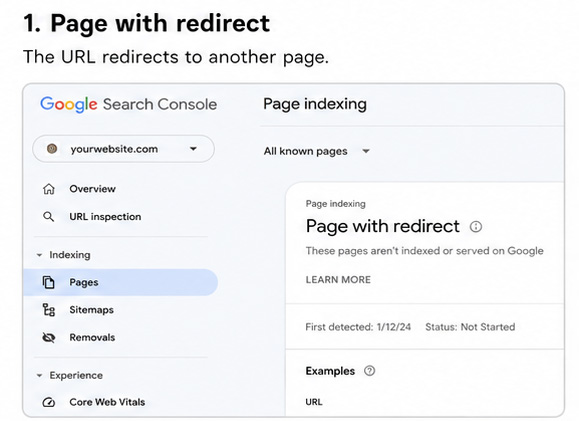
This one is usually not a problem. If you have an old URL that redirects to a new URL, Google generally isn’t going to index the old URL.
For example, let’s say you used to have:
yourwebsite.com/services
and you changed it to:
yourwebsite.com/therapy
If you set up a redirect from /services to /therapy, Google will see that redirect and understand that /therapy is the URL you want people to land on.
The old URL doesn’t need to be indexed.
What to do:
Usually, nothing. You only need to investigate if a URL is redirecting somewhere it shouldn’t, the redirect is broken, or you accidentally redirected an important page.
Don’t panic when:
You see a bunch of old URLs showing as “Page with redirect” after you’ve redesigned or reorganized your website. That’s often exactly what you want.
2. “Not found (404)”
A 404 means the URL doesn’t exist. Maybe you deleted a blog post. Maybe you changed a page URL. Maybe an old link is still floating around somewhere. Either way, a 404 is not automatically bad.
If you intentionally deleted a page and there is no relevant replacement for it, it’s okay for that URL to return a 404. Google even recommends fixing 404s primarily when they’re URLs that you link to yourself or have included in your sitemap.
When you should fix it:
A 404 is worth addressing when:
- It’s an important page that should still exist
- You accidentally deleted a page
- You changed the URL without setting up a redirect
- Your website navigation links to the broken URL
- Your sitemap contains the broken URL
- Other important websites are linking to the old URL
- There’s a newer, relevant page that should replace it
If you intentionally removed a page and there’s no good replacement, you don’t necessarily need to do anything.
What to do:
If the page has moved, create a 301 redirect from the old URL to the new, relevant URL. If the page is gone for good and there’s no replacement, a 404 may be completely appropriate.
3. “Crawled – currently not indexed”
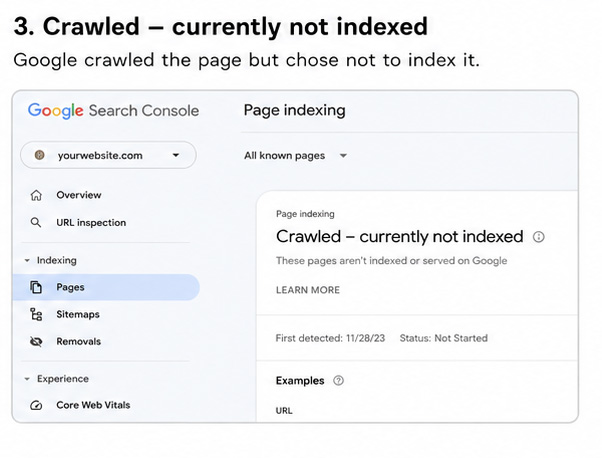
This is one I see people panic about all the time. I get it though, because it’s the annoying one. It sounds ominous. But the message is really telling you: Google crawled the page, but decided not to put it in the index right now.
Google does NOT guarantee that every page it crawls will be indexed. This can happen for a variety of reasons. The page might be very new, thin, similar to another page on your website (either in page title/description or the content itself), low-value or not particularly useful on its own, missing strong internal links (no rogue webpages here!!), or it’s just a page Google doesn’t think needs to be indexed
When you SHOULD pay attention:
If this is happening to an important page you want people to find through Google, then it’s worth investigating.
For example: You want this indexed: /therapy-for-anxiety
That’s something I’d look into, but a thin tag page (these show up on Showit if you blog and use tags – it drives me bonkers!!! So, I don’t use tags anymore when blogging lol), duplicate URL, old campaign page, or some other low-value URL. These are much less concerning.
Okay, so what do you do?
Start by clarifying if it is a page you actually want someone to find in Google? If the answer is yes, look at the page itself. Is the content helpful and substantial? Does it clearly target a topic people are searching for? Is it linked from other relevant pages on your website? Is there another page on your site that’s basically saying the same thing? And prob most importantly, use the URL Inspection tool to see exactly what Google knows about that URL.
Make sure you adjust the page content/photos/linking/etc., whatever is making this page “not worth indexing” according to Google and then request it to be indexed (Google Search Console → URL Inspection, enter the URL, and click Request Indexing.) after you’ve made the changes. This doesn’t guarantee indexing, but it puts the page back in Google’s queue for consideration.
Then, give it some time. If you just created or significantly updated the page, don’t panic if it doesn’t appear immediately. Google may need time to recrawl and reassess it.
What NOT to do
Don’t automatically delete the page just because you see “Crawled – currently not indexed.” And don’t keep requesting indexing over and over, either. If Google continues to exclude the page, that’s usually a sign to look at the quality, uniqueness, relevance, or internal linking of the page rather than repeatedly asking Google to crawl it.
4. “Discovered – currently not indexed”
This means Google knows the URL exists, but hasn’t crawled it yet. This is particularly common with newer pages. And again, it doesn’t necessarily mean something is wrong. Google has to decide when and how often to crawl pages. Indexing is not instant, even if you submit a page for indexing.
What to do:
If it’s a brand-new blog post, I wouldn’t immediately panic.
Make sure:
- The page is live
- It’s linked from your website
- It’s included in your sitemap
- There isn’t a noindex directive
- The page isn’t blocked by robots.txt
- The content is actually worth indexing
Then give Google some time. You can also use URL Inspection to request indexing for an important new page. Just don’t sit there requesting indexing 47 times, it won’t make Google move faster. That said, I do 100% recommend submitting a new blog post URL to be indexed after you publish it, just to give Googs a little nudge saying “hey, I’ve got new content, can you take a look?”.
5. “Blocked by robots.txt”
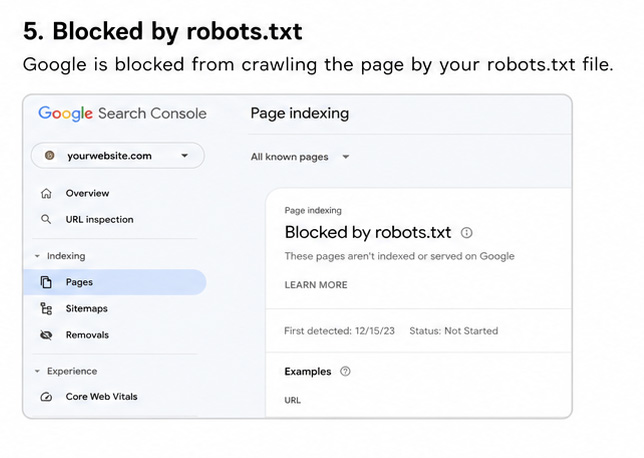
This one deserves a little more attention. Your robots.txt file gives search engine crawlers instructions about which areas of your website they can or cannot crawl. If Search Console says a URL is blocked by robots.txt, Google is being prevented from crawling that URL.
That can be intentional, or it can be a mistake.
So you need to ask yourself, did I intentionally block this page? If yes, you’re obv fine. It’s doing what you wanted it to do. But if you don’t recognize the URL, or it’s an important page on your website that you absolutely want Google to find, then you need to figure out what’s going on.
And this is where I’d start: look at the actual URL. Don’t just look at the error and assume you have a problem. Search Console will sometimes flag URLs that aren’t pages you actually care about having in Google. For example, you might see a weird-looking URL that was generated by your website platform or some other technical page that isn’t meant to be a page someone finds through search. That’s very different from seeing your homepage, a service page, or an important blog post.
Once you know what URL Google is talking about, go to yourwebsite.com/robots.txt and take a look at your robots.txt file. You don’t need to understand every line in there. You’re mainly looking to see whether there’s a rule that’s preventing Google from crawling the URL you’re concerned about.
If you find that an important page is being blocked, don’t immediately start deleting things from your robots.txt file. You want to understand what that rule is blocking before you change it, because one small change can affect more than the single URL you’re looking at.
What you do next will also depend on your website platform. If you’re using WordPress, you generally have more control over your robots.txt file and may be able to remove or change the rule that’s causing the issue.
If you’re using a platform like Showit, you may not have the same control over the file. In that case, if an important page is being blocked, I’d reach out to Showit support and ask them why that URL is being blocked and whether there’s anything that needs to be changed.
And here’s another important piece of this: Robots.txt and noindex are not the same thing (!!!)
If your goal is to keep a page out of Google’s search results, blocking it in robots.txt isn’t the right solution in most cases. Google needs to be able to access a page in order to see a noindex instruction on that page. So think of it this way: Robots.txt controls crawling. Noindex controls indexing.
6. “Excluded by ‘noindex’ tag”
This one sounds scary, but it can actually be a good thing. A noindex tag just tells Google, “Please don’t put this page in your search results.” There are plenty of pages on a website that don’t need to show up in Google. (Think: a thank-you page someone sees after filling out a form, a private or client-only page, a utility page, an internal search page, or a page that doesn’t really have any value as a standalone search result.
So seeing “Excluded by ‘noindex’ tag” doesn’t automatically mean something is wrong. The important question is simply: Should this page be indexed? If the answer is no, then you’re good. The page is being excluded because you’ve told Google not to include it, and Google is following that instruction.
Buuuuut, if the answer is yes, then you need to investigate.
For example, let’s say Search Console is telling you that your main services page is excluded by a noindex tag. That’s obviously not what you want. You want potential clients searching for your services to be able to find that page through Google. In that case, you’ll want to figure out where the noindex instruction is coming from and remove it.
One of the easiest ways to start is with Google’s URL Inspection tool. Enter the URL and look at the indexing information Google gives you. It can help confirm that a noindex directive is what’s keeping the page out of the index.
If you’ve confirmed that’s the problem, then you’ll need to check how your website platform is adding the noindex tag. Depending on your platform, it might be a setting you’ve turned on, an SEO plugin, or something that’s been added to the page itself.
If Google is telling you a thank-you page is excluded because of a noindex tag, great. Leave it alone.
If Google is telling you your most important service page is excluded because of a noindex tag, that’s something you want to fix. And you do this by checking on the content. Again, is it thin, duplicated content, not linked from anywhere else? Make those changes first!
7. “Duplicate without user-selected canonical”
This one sounds much more technical than it actually is. A canonical URL is essentially the version of a page that you are telling Google is the main version. Duplicate URLs can happen for loooooots of reasons, especially on larger or more complex websites.
If Google finds multiple URLs with substantially similar content, it may decide that only one version belongs in the index. It’s usually fine. Google just doesn’t want to fill its search results with five copies of the same page.
When to investigate: If Google has chosen the wrong canonical version, that’s worth fixing.
For example, if you have:
/services
and
/therapy-services
and Google decides the second one is the canonical version when you actually want /services to be your main page, then you have something to investigate.
But if Google is correctly identifying the primary version of a duplicate URL you can just leave it alone and move on.
8. “Alternate page with proper canonical tag”
This is another one that can look like an error when it isn’t. If Google sees that a page points to another URL as its canonical version, it may exclude that alternate URL from the index. That’s generally what you want.
For example, you might have two URLs that contain essentially the same content. You tell Google: “This one is the primary version.” Google indexes the primary version and leaves the alternate out. So no real error here, just you telling Google how you want your site to be read.
9. “Soft 404”
A soft 404 is a little different. A traditional 404 tells Google: “This page does not exist.” A soft 404 is when the page looks like a “not found” page to Google, but the server is technically returning a normal webpage response instead of a true 404.
For example, you might have a page that says: “Sorry, we couldn’t find what you’re looking for.” …but the URL technically returns a successful webpage response. Google may interpret that as a soft 404.
What to do:
If the page truly doesn’t exist anymore, you don’t necessarily need to do anything dramatic. A normal 404 response is completely fine. Google understands that the page is gone and will eventually remove it from its index. ‘
If the page used to exist but has been replaced by a new page, though, you may want to redirect the old URL to the new one instead. For example, if you changed /about-us to /about, a redirect makes more sense than leaving the old URL to return a 404.
If the page is supposed to exist and you’re getting a soft 404, that’s when I’d take a closer look at the page itself. Make sure there is actually useful content on the page and that it isn’t accidentally empty, broken, or only showing a generic “we couldn’t find what you’re looking for” message.
You can also use Google’s URL Inspection tool to inspect the URL and see what Google is seeing. If the page loads normally for you but Google is treating it like a 404, that’s a good clue that something about the page or its server response needs to be investigated.
And one important thing: don’t create a fake page just to get rid of the error. If a URL is genuinely gone, it’s okay for it to be gone. A real 404 isn’t something you need to “fix” just because Search Console is reporting it. What you really want to figure out is whether the URL is supposed to exist. If it isn’t, a 404 is fine. If it has been replaced, redirect it. And if it is supposed to be a real, useful page, figure out why Google is interpreting it as essentially empty or nonexistent. That’s the part I’d pay attention to here, rather than trying to get the Search Console report to show zero errors.
10. “Server error (5xx)”
Okay, THIS one is worth paying attention to. A 5xx error generally means your server had a problem responding to Google’s request. That could mean Google couldn’t access the page, the request timed out, or your site was temporarily unavailable.
One isolated server error doesn’t necessarily mean your website is falling apart. Servers have occasional hiccups, and Google may simply have tried to access your website at an unlucky moment. But if you suddenly see a large spike in server errors, that’s something I’d investigate. Especially if your website is also having problems when you visit it yourself.
What to do:
Start by looking at the affected URLs in Search Console. Are you seeing one random URL, or are you suddenly seeing dozens or hundreds of pages affected? Then try visiting a few of the URLs yourself. If they load normally for you, that’s useful information. It could have been a temporary issue that happened when Google tried to crawl the pages. If the pages aren’t loading for you either, that’s a bigger clue that something is actually going wrong with your website or server.
I’d also look at when the errors started. If you see a bunch of errors all around the same time, there may have been a temporary outage or server issue. If they’re continuing to happen over several days, that’s when I’d take it more seriously. You can also use Google’s URL Inspection tool to test an affected URL and see whether Google is currently able to access it. If Google can access the page now, the issue may have already resolved itself.
If you’re seeing a handful of random 5xx errors that disappear and don’t come back, I wouldn’t lose sleep over them. But if you’re seeing a pattern, especially across important pages, don’t just keep requesting indexing and hoping Google figures it out. That’s usually a sign that something outside of Search Console needs to be addressed.
At that point, I’d reach out to your hosting provider or developer and let them know you’re seeing 5xx errors in Google Search Console. Give them a few of the affected URLs and, if possible, the dates and times you’re seeing the errors. That gives them something concrete to investigate.
And if your website is currently down or consistently throwing server errors when you visit it yourself, that’s no longer just an SEO issue. Your website needs to be fixed first. Google can deal with the crawling and indexing side once the site is reliably accessible again.
So… Which Search Console Errors Should You Actually Fix?
Here’s the easiest way I think about it. When you see something in Search Console, don’t start with: “How do I make this number go away?” Start with: “Is this URL supposed to be indexed?” If YES: Investigate why Google isn’t indexing it. If NO: Ask whether the reason Google isn’t indexing it is intentional. If it is, leave it alone.
You are not trying to get every number to zero (even those of you with a type A heart like me that REALLLLLLY wants it to be 0 lol)
You are just want to make sure Google can find, understand, and index the pages that actually matter.
A Simple Search Console Troubleshooting Process
If you’re staring at an error and have no idea what to do, here’s the process I’d follow.
Step 1: Look at the reason
Don’t just look at the big red number. Click into the issue and read the actual reason Google gives you. “Not indexed” isn’t enough information. “Crawled – currently not indexed” gives you much more to work with. “URL marked noindex” gives you something completely different to investigate.
Step 2: Look at the affected URLs
Search Console will usually show you examples of URLs affected by that issue. Look at a handful of them. Ask yourself: What do these pages have in common? Sometimes you’ll immediately see the pattern. If every URL is an old blog post you’ve intentionally deleted, that’s very different from your entire services section suddenly disappearing from the index.
Step 3: Decide whether the page should be indexed
This is the most important step. For a typical service-based business, I would generally care most about pages like:
- Homepage
- Services pages
- About page
- Contact page
- Important location pages
- High-quality blog posts
- Other pages intentionally created to attract organic search traffic
being indexed. I would care much less about duplicate, temporary, utility, or intentionally hidden URLs.
Step 4: Use URL Inspection
If you’re still unsure, put the URL into Search Console’s URL Inspection tool.
This lets you see what Google knows about that specific page and can help you troubleshoot whether the page is available for indexing, whether crawling is allowed, and what Google has done with it.
You can also use the live test to see how Google can access the current version of the page.
Step 5: Fix the actual problem
If something is genuinely wrong, fix it on your website. Don’t try to “fix” the Search Console report itself. For ex:
Broken URL:
Fix the URL or redirect it.
Accidental noindex:
Remove the noindex instruction.
Important page blocked by robots.txt:
Remove the incorrect block.
Duplicate page:
Make sure the correct canonical version is established.
Important page not indexed:
Improve the page, strengthen internal linking, make sure it’s crawlable, and request indexing if appropriate.
Step 6: Give Google time
This part is annoying, but important. Google does not update everything instantly. After you make a change, Google needs to crawl the page again before Search Console can reflect that change. Google specifically notes that indexing can take time, and even requesting indexing does not guarantee immediate inclusion.
So if you fix something today and Search Console still shows the old issue tomorrow? That doesn’t necessarily mean your fix didn’t work. I’ve seen Google take week(s) to recrawl and index a page, so just be patient, but check back regularly.
Do You Need to Check Google Search Console Every Day?
No!!!! Please don’t. You’ll go crazy lol
Google recommends checking the Page Indexing report periodically, particularly after significant website changes. For smaller websites, you may not even need to use the report regularly unless you’re troubleshooting a specific issue.
For most small business websites, I’d rather see you spend your time:
- Creating useful content
- Improving your service pages
- Making sure your website is easy to navigate
- Adding internal links
- Keeping your website up to date
- Making sure your most important pages are indexed
…instead of refreshing Search Console every morning waiting for the little red number to disappear.
What About a Big Number of “Not Indexed” Pages?
This is probably the biggest thing I want you to take away from this post. A high number of non-indexed pages does not automatically mean your SEO is bad. Google may know about hundreds of URLs that simply don’t need to be indexed. You might have redirected, duplicate, filtered, old URLs, or deleted pages, noindex pages, utility pages, etc.
Google itself says you should not expect every URL on your site to be indexed. What matters is whether your important pages are indexed. You just need to make sure you are prioritizing your important pages being indexed (which are likely your home, about services pages, but if you are blogging, you want those posts indexed too! Otherwise, what’s the point in writing them? 🙂 )
When You Should Be Concerned
There are a few situations where I would stop ignoring Search Console and start investigating.
You suddenly see a large drop in indexed pages. Especially if you haven’t intentionally removed or changed anything.
Important service pages become unindexed. If your homepage, services, or important location pages suddenly disappear from Google’s index, that’s worth investigating.
You see a sudden spike in errors. Google recommends looking for patterns when you see a spike in indexing errors, particularly if it corresponds with a website change or a sitemap change.
Your website recently launched or was redesigned. This is a good time to make sure your important pages are accessible, linked, crawlable, and indexable.
You changed URLs. Whenever URLs change, redirects and internal links become especially important.
Your organic traffic drops significantly. Search Console can help you investigate whether you’re dealing with an indexing problem, a search performance change, or something else entirely.
One Last Thing: Search Console Isn’t a Report Card
I think this is the biggest mindset shift I can give you. Google Search Console isn’t grading your website. It’s giving you information. A red error doesn’t automatically mean your website is bad. A page being excluded doesn’t automatically mean your SEO is bad. And having 100% of your URLs indexed isn’t the goal.
Search Console is a diagnostic tool. It’s there to help you understand what Google is seeing so you can make better decisions about your website. So the next time you log in and see a giant number under “Not indexed,” take a breath. Click into the report. Look at the reason. Look at the URLs. Ask whether those pages actually need to be in Google’s index. And then decide whether you need to do anything.
Want help figuring out what your Search Console is telling you?
If you’ve opened Google Search Console and feel like you’re reading another language, you’re not alone.
SEO is full of technical terms that don’t always translate into obvious next steps for a small business owner.
That’s one of the things I help with when I’m working on a website’s SEO foundation: making sure the important pages are set up correctly, giving Google the information it needs, and helping you understand what’s actually worth your attention.
You don’t need to become an SEO expert to have a website that can be found in Google.
You just need to know what matters.
Frequently Asked Questions About Google Search Console Errors
Are Google Search Console errors bad?
Not necessarily. Google Search Console reports a lot of things that aren’t actually problems. Some URLs aren’t indexed because you intentionally told Google not to index them, while others may be redirects, deleted pages, duplicate URLs, or technical pages that don’t need to appear in search. The important thing is understanding why a URL isn’t indexed and whether it’s a page you actually want Google to find.
Why does Google Search Console say my page is not indexed?
There are several reasons a page might not be indexed. Google may not have crawled it yet, it may have decided not to index it, the page could have a noindex tag, it could be blocked by robots.txt, or Google may have identified it as a duplicate or another type of URL that doesn’t need to be indexed. Use the URL Inspection tool to get more information about a specific page.
How do I fix a page that is not indexed by Google?
First, figure out why Google isn’t indexing the page. Check the URL in Google Search Console’s URL Inspection tool, then make sure the page is live, crawlable, indexable, and linked from other relevant pages on your website. If the content is thin or too similar to another page, improve or differentiate the content. Once you’ve made any necessary changes, you can request indexing through the URL Inspection tool. Just remember that requesting indexing does not guarantee that Google will index the page.
Should all of my website pages be indexed by Google?
No. You don’t need every URL on your website to be indexed. Some pages, like thank-you pages, private pages, duplicate URLs, redirects, utility pages, and other low-value or technical URLs may not belong in Google’s index at all. For most small business websites, the pages you should care most about are your homepage, important service pages, location pages, and valuable blog posts that you want people to find through search.
What is the difference between robots.txt and a noindex tag?
Robots.txt controls whether search engine crawlers are allowed to access a URL, while a noindex tag tells Google not to include a page in its search results. They’re not interchangeable. If your goal is to keep a page out of Google’s index, a noindex directive is generally the appropriate tool because Google needs to be able to crawl the page to see that instruction.
How often should I check Google Search Console?
You don’t need to check Google Search Console every day. For most small business websites, checking it periodically and paying closer attention after a website redesign, URL changes, or other major updates is enough. If you notice a sudden drop in indexed pages, a large spike in errors, important pages becoming unindexed, or a significant drop in organic traffic, that’s when I’d take a closer look.
Pin for Later:


Jordin Brinn is the founder and lead designer of Unica Formo — a creative studio in Columbus, Ohio, specializing in custom Showit website design and brand strategy for service-based businesses like coaches, consultants, therapists, creatives, and wellness professionals. With over a decade of business experience, she helps clients bring strategy, clarity, and personality to their online presence.
Explore design services and free resources at unicaformo.com.


